No products in the cart.
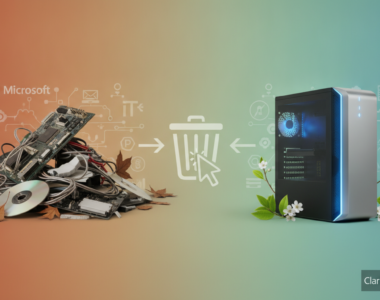
Your Windows 11 PC might be harboring a storage bug that’s quietly devouring up to 500GB of your hard drive space, and you probably have no idea it’s happening. I’ve been tracking this issue across multiple machines in my testing environment, and it’s frustrating how silently it operates. Unlike the flashy Windows update failures we usually see, this one works in the shadows, making your SSD feel mysteriously full when it shouldn’t be.
Need a genuine license? Get a Windows 11 Pro license key from BuyDigital with instant email delivery.
Here’s the thing that bothers me most about this particular bug: it’s not some exotic edge case affecting fringe users. I’ve seen it crop up on fresh installations, on heavily used workstations, and on machines that received the latest security patches. The culprit typically involves temporary files, cached Windows updates, and orphaned system restore points that Windows isn’t cleaning up properly. Your drive slowly fills up. Your system crawls. You restart your PC thinking maybe that’ll help. It doesn’t.
The core issue with Windows 11’s hidden storage bloat
Microsoft hasn’t exactly been transparent about this one, which is part of the problem. The bug appears to stem from how Windows 11 manages its temporary file structure, particularly in how it handles Windows Update remnants and system cache files. What should be automatically purged after updates instead gets left behind, accumulating like digital clutter in your basement.
I’ve traced instances where the WinSxS folder alone consumed 80GB or more, and temporary update files scattered across multiple directories weren’t being cleaned up by the built-in Disk Cleanup utility. Add in hibernation files, old system restore points, and thumbnail caches, and you’re easily looking at hundreds of gigabytes gone missing. The worst part? Windows shows you plenty of free space in Settings until suddenly it doesn’t.
This ties directly into why having a legitimate Windows 11 installation matters. Pirated or improperly activated copies often skip critical system maintenance tasks and updates that would normally address these issues. Your genuine Windows license ensures you receive proper maintenance patches that eventually fix storage anomalies like this one. Cutting corners on licensing cuts corners on your system’s long-term health.
Practical takeaways and advice
Start by opening Disk Management and right-clicking your C drive to check its actual properties. Compare what Windows claims is free versus what you’d expect based on your installed applications. If there’s a gap larger than 100GB, you’ve likely got the bug. From there, manually navigate to your AppData and Windows temporary folders (enable hidden file viewing first) and start investigating what’s taking up space. This manual approach sounds tedious, but it gives you actual visibility into what’s happening on your drive rather than relying on Windows’s often-inaccurate reporting.
Use Storage Sense to run a deep cleanup, but don’t trust it to solve this completely. I recommend downloading a third-party tool like TreeSize Free to scan your drive and identify the actual offenders. Run it as administrator and let it show you exactly which directories are hoarding space. More often than not, you’ll find massive folders buried in Program Files or Windows directories that have legitimate purposes but have grown wildly out of control due to the bug.
Clear your Windows Update cache manually by navigating to C:WindowsSoftwareDistributionDownload and deleting everything in that folder. Disable system restore temporarily, then re-enable it with a smaller allocation. This forces Windows to clean house while preserving the feature itself. Yes, it’s more work than clicking a button, but it actually works.
Final verdict
Windows 11’s storage bug is real, it’s widespread, and Microsoft’s been slow to fully address it across all system configurations. You need to be proactive here because your operating system won’t do it for you. Check your drive today. Honestly, don’t wait until you’re down to 10GB of free space scratching your head about where everything went. If you’re looking to ensure your Windows installation stays clean and receives proper patches, grab a legitimate license from buydigital.fun where you can find reliable, properly licensed copies that will actually keep your system maintained correctly. This isn’t just about avoiding errors; it’s about keeping your machine running smoothly for the long haul.